
The EnsureMail Ultimate platform installs as Microsoft Exchange on your desktop, offering seamless integration with Outlook on both Windows and macOS. This enables full synchronization of emails, contacts, calendars, notes, and tasks between Outlook and webmail.
Note that you can install it as IMAP or POP3 too.
Imoprtant: Outlook Compatibility
If you wish to install the email as Exchange, EnsureMail Ultimate is compatible with current versions of Microsoft Outlook for macOS and Windows. Older versions of Outlook, unfortunately, offer very limited Exchange functionality for Outlook. In addition, the free Outlook that is offered with Windows 11 will only work with an IMAP installation.
Supported versions include:
- Outlook 2021
- Outlook 2019
- Outlook 2016
- Outlook for Microsoft 365 (Office)
- Outlook for Mac
NOTE: Due to changes Microsoft is making to the "New Outlook", it no longer supports adding accounts from on-premise Exchange servers. As a result, it does not work with EnsureMail Ultimate. This includes the free Outlook that is offered in the Windows app store. If that is your only option, you can install your account as IMAP.
To set up your email on a compatible Outlook, go to File > Add Account, then enter the email address and password you were provided.
Outlook will automatically configure the account as an Exchange connection using Autodiscover.
In case you get a screen like the one below, DOMAIN\username or Email Address, the correct entry would be your domain name\your email or ultimatesrvr.de\your email, your email password, and for the server in the last field, mail.'your domain', or mail.ultimatesrvr.de
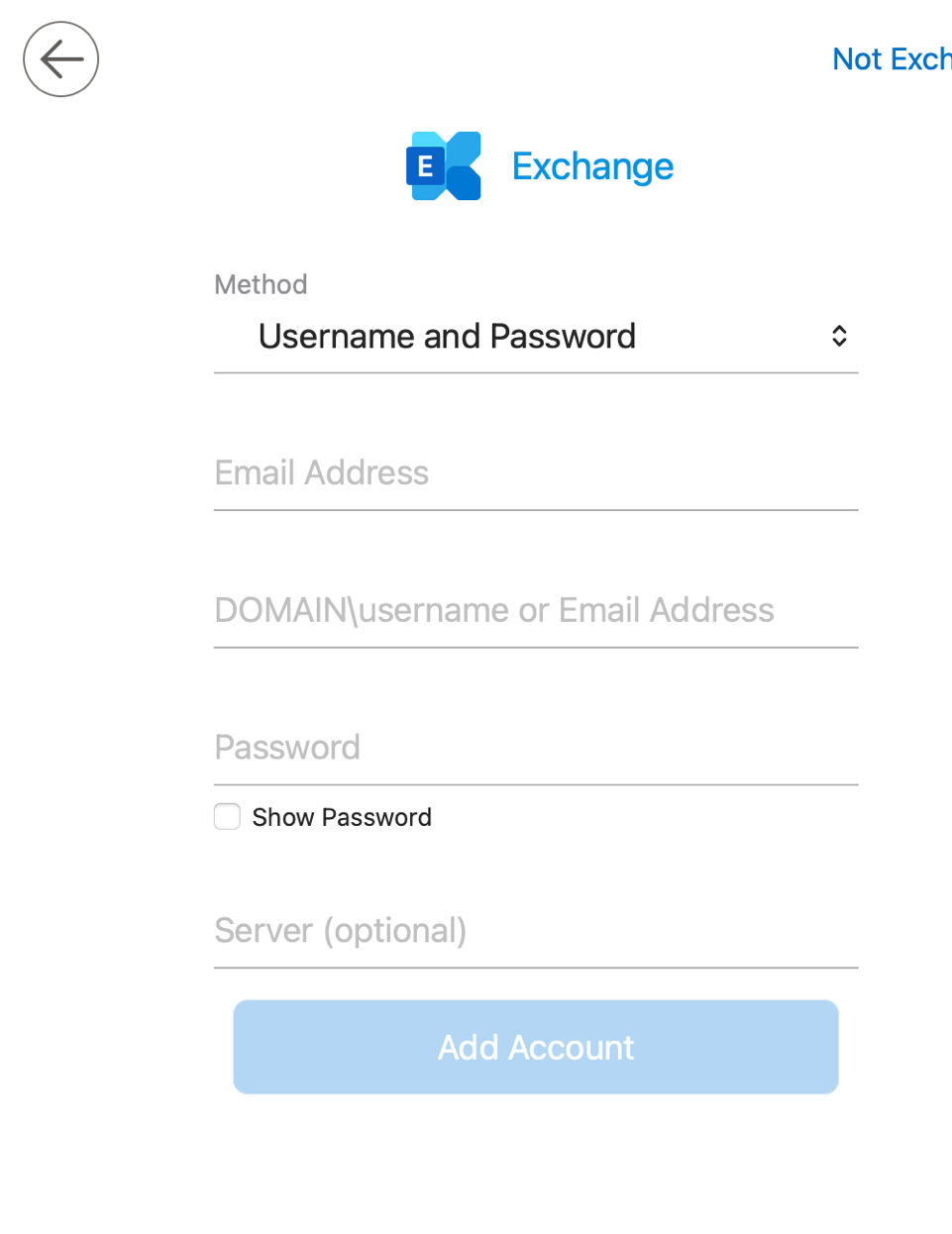
Important: The optional “New Outlook” interface in Outlook does not support Exchange properly. Please ensure it is not enabled during setup.
If you need to set up your email on a device or app that supports only IMAP or POP3, please use the following settings:
-
IMAP Server:
mail.'your domain' or mail.ultimatesrvr.de(SSL enabled, port 993) -
SMTP Server:
mail.'your domain' or mail.ultimatesrvr.de(SSL enabled, port 587 or 465) -
POP3 Server:
mail.'your domain' or mail.ultimatesrvr.de(SSL enabled, port 995)
.